Getting started
Threat Eraser finds and removes viruses, trojans, ransomware, spyware and other malware on your Windows PC, and keeps its virus definitions up to date by itself.
What you need
- A 64-bit PC with Windows 10 (version 1809 or later) or Windows 11.
- An internet connection, so Threat Eraser can download virus definitions and activate your licence.
- Your Installation Key from your purchase email, in the format
XXXX-XXXX-XXXX-XXXX– only needed to remove threats and to use Real-Time Watch, Ransomware Early Warning and scheduled scans. Scanning is free.
Install and start
- Run ThreatEraserSetup-10.26.exe. If Windows shows "Windows protected your PC", click More info then Run anyway.
- Click Next, Install and Finish. Threat Eraser starts with its splash screen.
- On the first start Threat Eraser downloads its virus definitions. You can watch the progress on the Dashboard and keep using the program while it works.
- Click Quick Scan to check your PC.
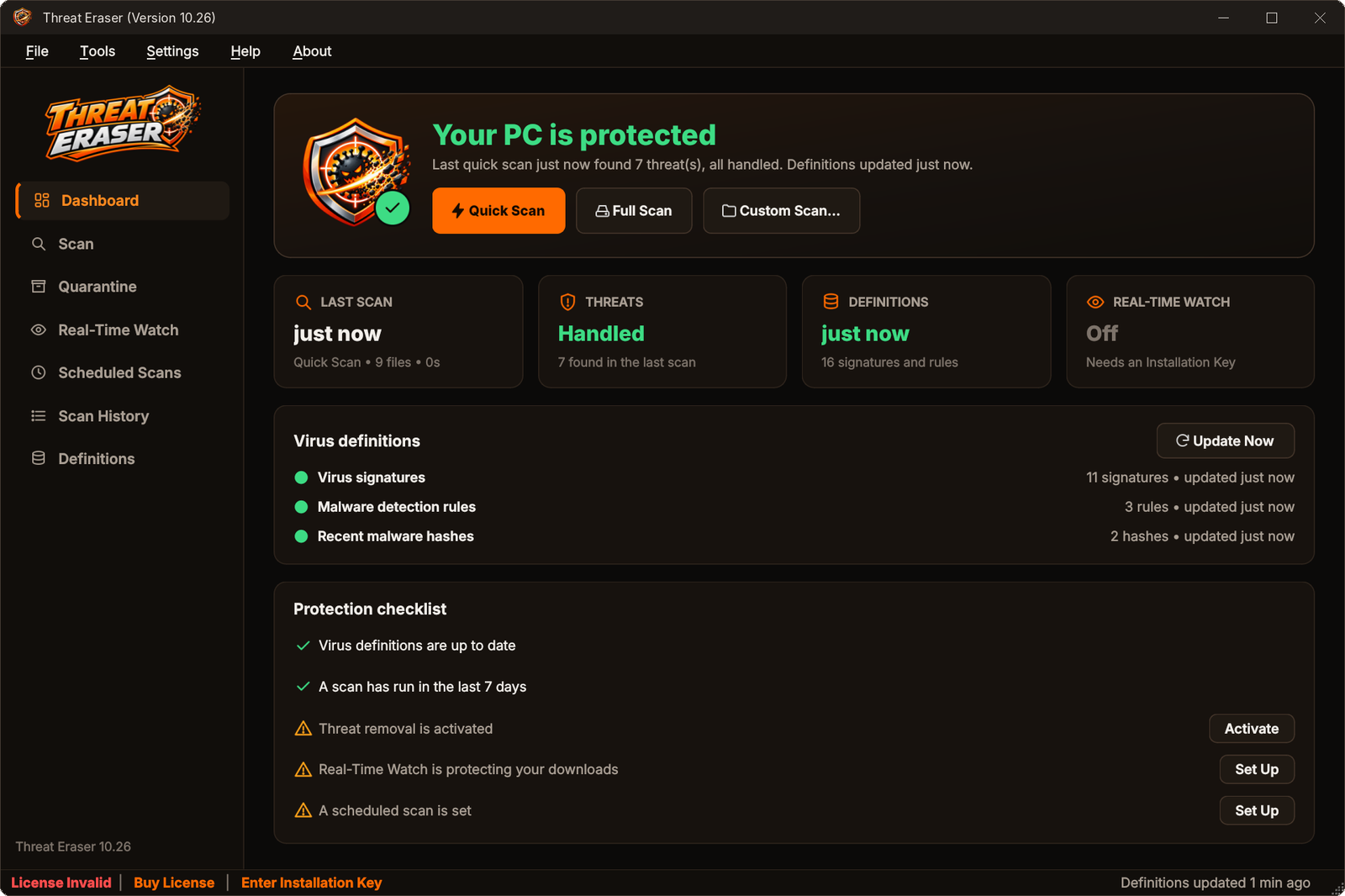
A quick tour of the window
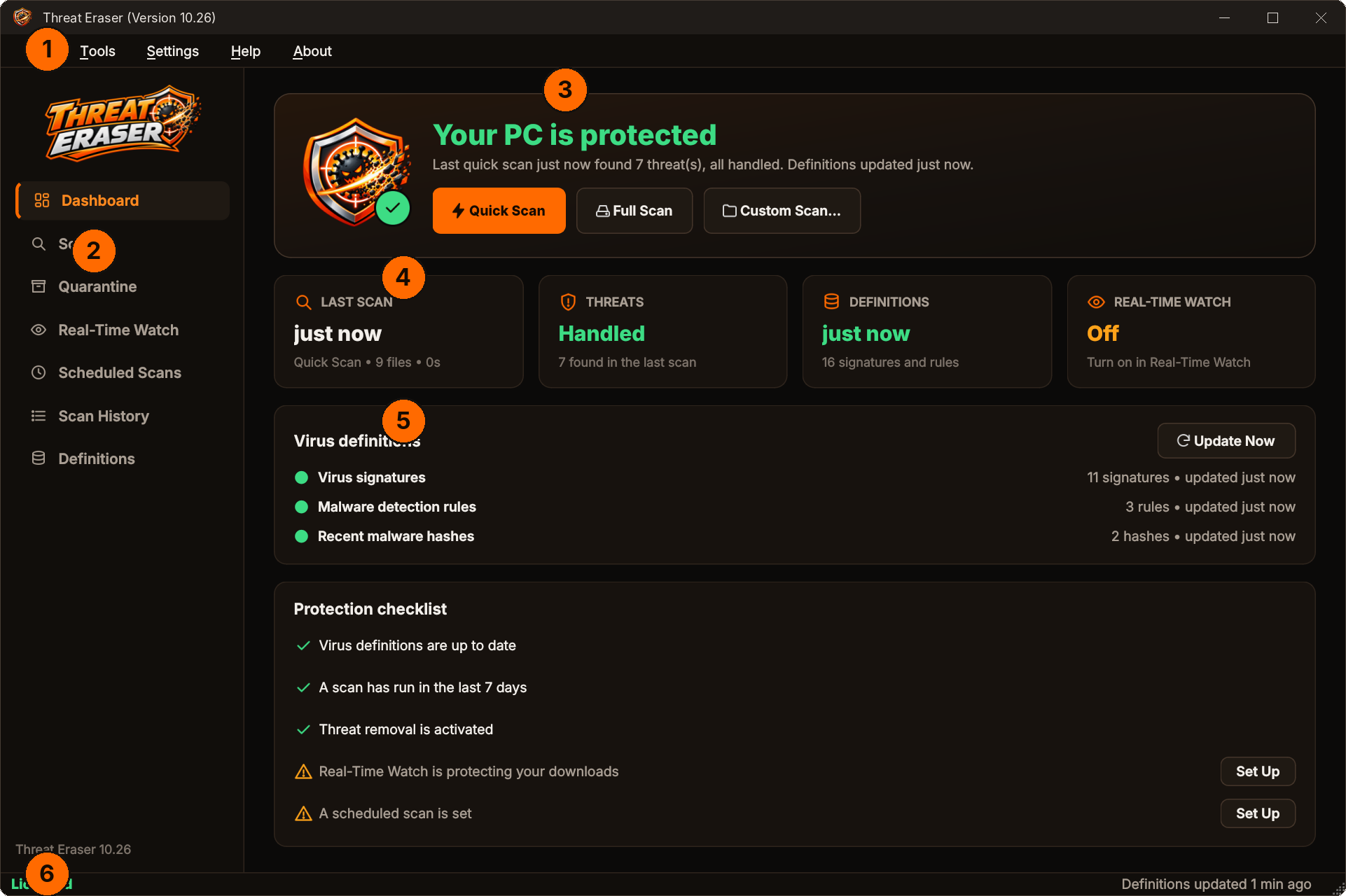
- 1Menu bar – File, Tools, Settings, Help and About.
- 2Side bar – Dashboard, Scan, Quarantine, Real-Time Watch, Scheduled Scans, Scan History and Definitions.
- 3Protection status with the Quick Scan, Full Scan and Custom Scan buttons.
- 4Tiles – last scan, threats, definitions and Real-Time Watch at a glance.
- 5Virus definitions – each type of definition and when it was last updated.
- 6Status bar – your licence state and how old your definitions are.
The Dashboard
The Dashboard tells you in one line whether your PC is protected, and what to do if it is not.
| Status | What it means |
|---|---|
| Your PC is protected | Definitions are current and the last scan's threats were all handled. |
| Run your first scan | Definitions are ready; you have not scanned yet. |
| Getting ready | The first definitions are still downloading. You can scan now with the built-in signatures, but scan again when the download finishes. |
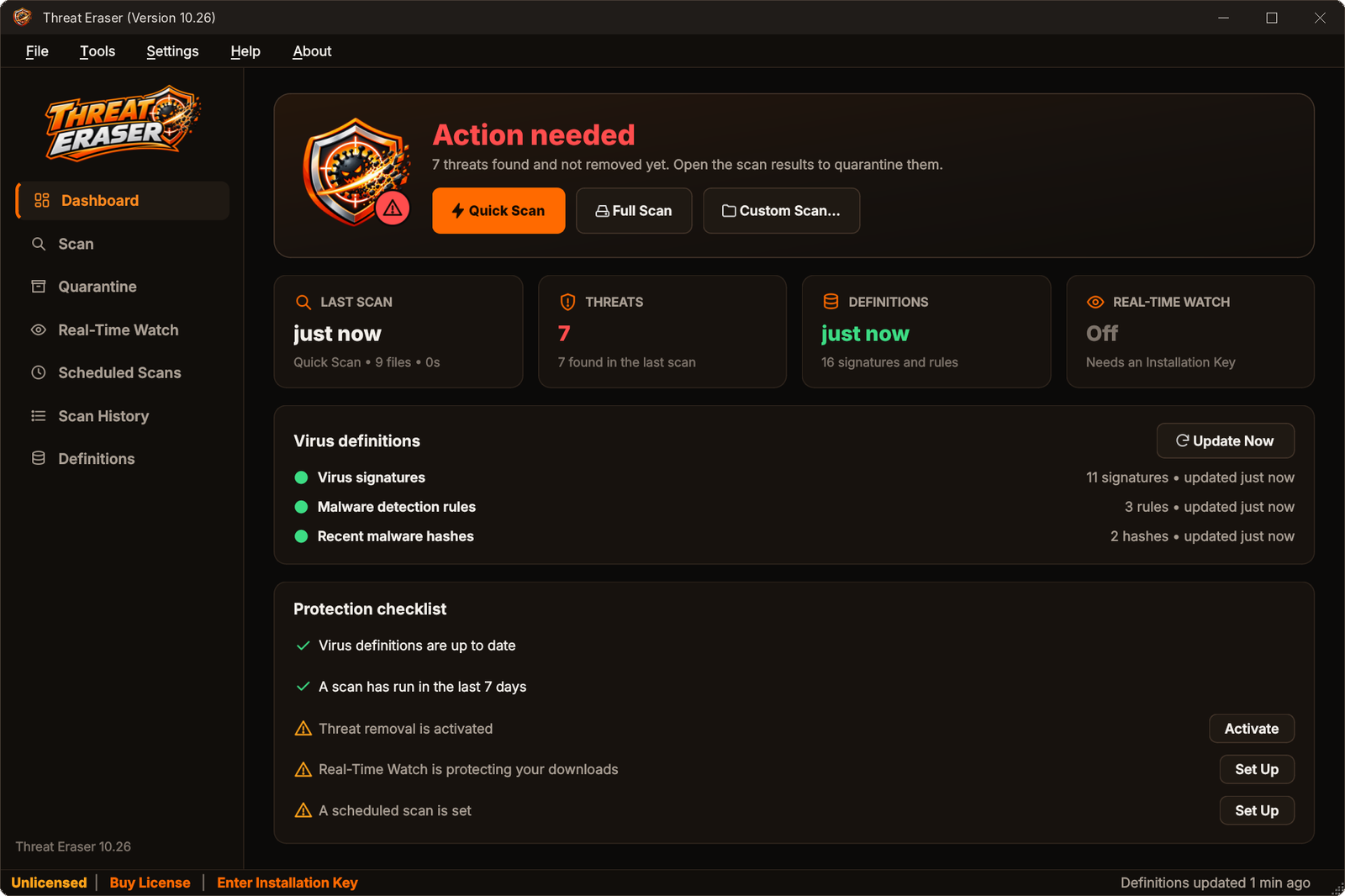
| Action needed | Threats were found and have not been removed yet. Open the scan results to quarantine them. |
| Definitions out of date | Definitions are more than three days old. Click Update Now. |
Protection checklist
The checklist at the bottom shows five habits that keep a PC safe: current definitions, a scan in the last 7 days, activation, Real-Time Watch and a scheduled scan. Anything that is not done yet has a button next to it.
Scanning your PC
| Scan | What it checks | Start it from |
|---|---|---|
| Quick Scan | The places malware usually hides: Downloads, Desktop, Documents, temporary folders, Startup folders, AppData and ProgramData, every program that is running, and programs set to start with Windows. | Dashboard, Scan page, File › Quick Scan (Ctrl+Q), tray icon |
| Full Scan | Every file on every fixed drive. | Dashboard, Scan page, File › Full Scan |
| Custom Scan | A folder you choose. | File › Custom Scan... (Ctrl+O) |
| Scan Files | Individual files you choose. | Scan page, File › Scan Files... |
| Drag and drop | Anything you drop on the Scan page. | Drop files or folders onto the window |
| Right-click | Any file, folder or drive in Windows Explorer. | Scan with Threat Eraser (turn on in Default Settings › Protection) |
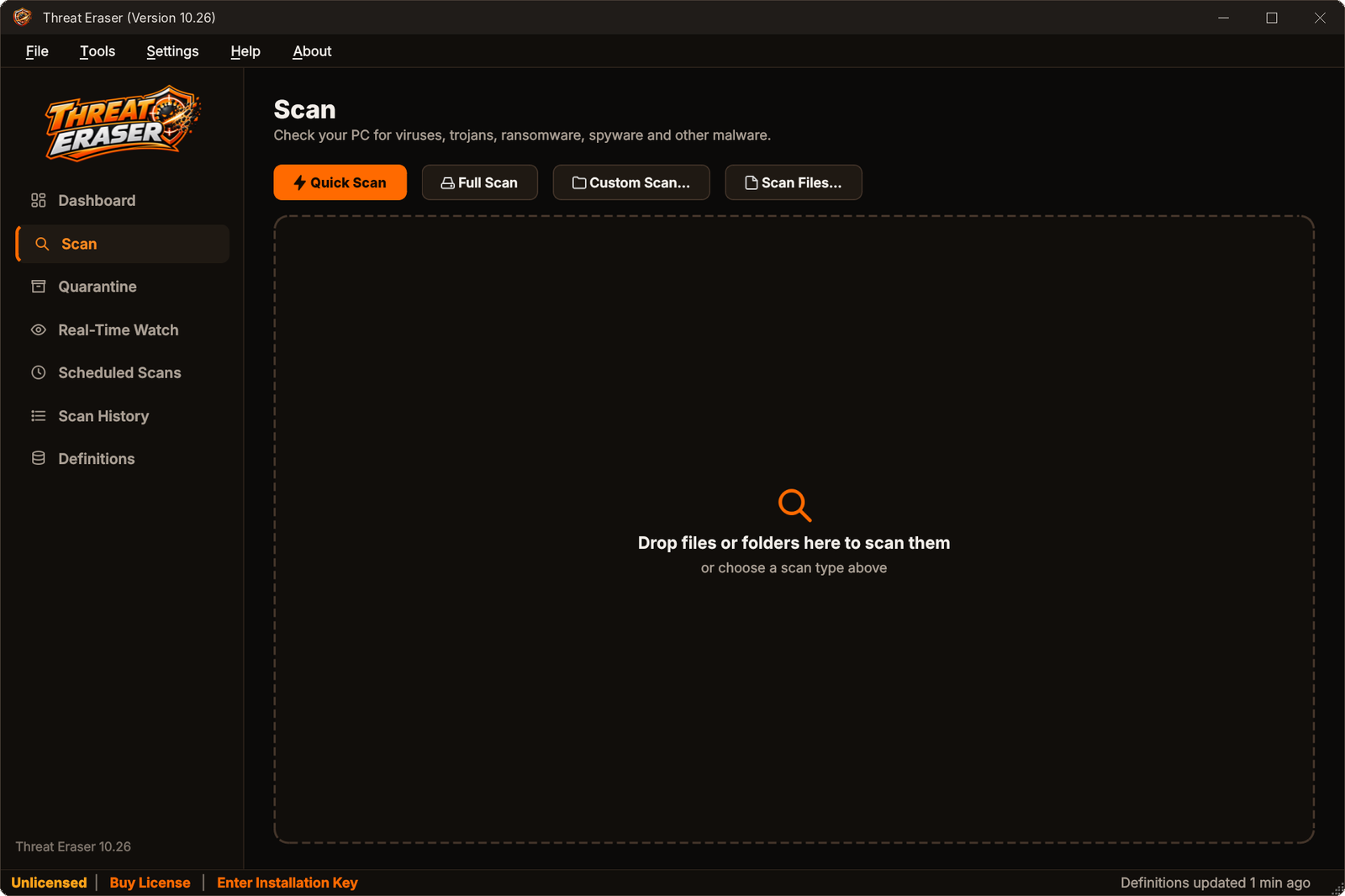
While a scan runs
You see the progress, the file being checked, how many files and how much data have been scanned, the threats found so far and the time taken. Threats appear in the list as soon as they are found.
- Pause / Resume – stop for a while, then carry on.
- Stop Scan (or Esc) – end the scan. Anything found so far is kept.
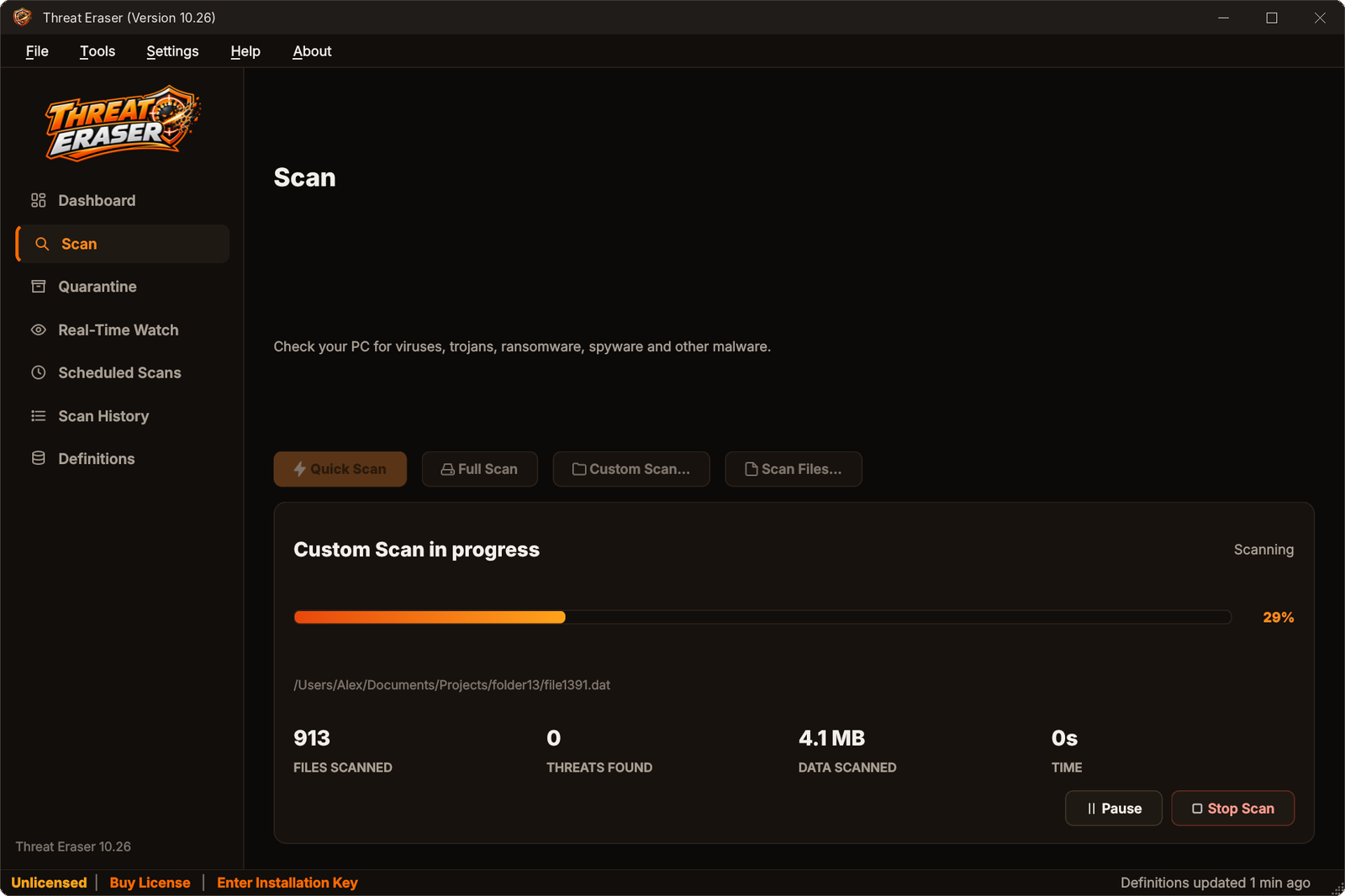
Scans run at low priority, so you can keep working. Cloud-only OneDrive and Dropbox files are skipped so they are not downloaded just to be scanned – you can change both in Default Settings › Scanning.
Files that are in use or that Windows does not let Threat Eraser read are skipped and counted under the results. This is normal for a few system files.
Scan results
When a scan finds something, each threat is listed with its name, severity, category, the file, how it was detected and its status.
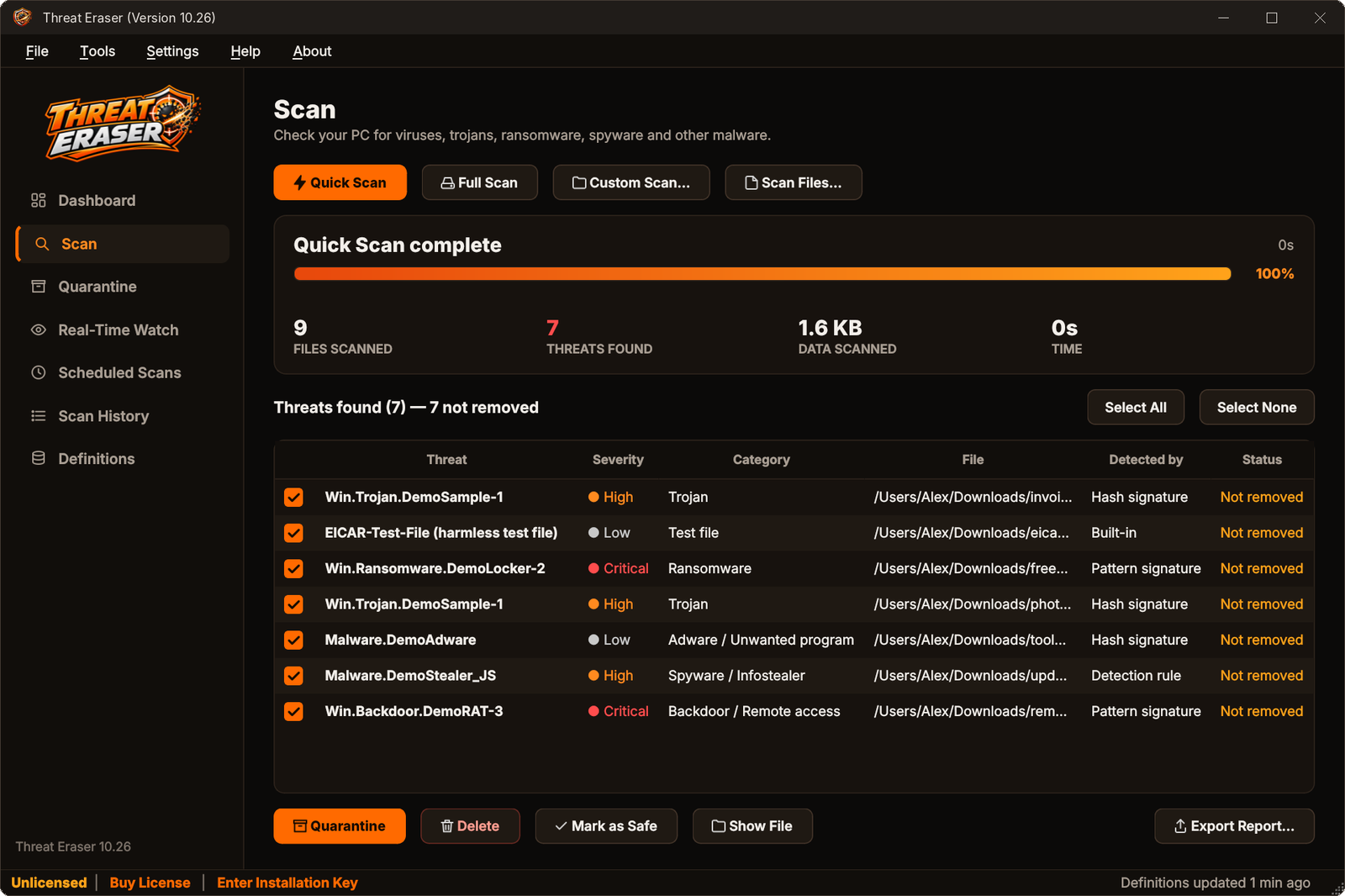
Severity and category
| Severity | Typical threats |
|---|---|
| Critical | Ransomware, backdoors and remote-access tools. |
| High | Trojans, spyware and password stealers, worms, viruses, exploits. |
| Medium | Cryptominers, malicious documents, disguised file names. |
| Low | Adware and unwanted programs, test files. |
Detected by
| Shown as | Meaning |
|---|---|
| Hash signature | The file's fingerprint exactly matches known malware. |
| Pattern signature / Section signature | The file contains code known to belong to malware. |
| Detection rule | A malware detection rule recognised the malware family. |
| File-name check | The name is disguised, for example invoice.pdf.exe, which pretends to be a PDF but is a program. |
| Built-in | Matched a signature built into Threat Eraser, such as the EICAR test file. |
What to do with threats
Threats are ticked automatically. Untick anything you want to leave, then choose:
| Button | What happens |
|---|---|
| Quarantine (recommended) | Moves the files into quarantine, where they cannot run. You can restore them later. See Quarantine. |
| Delete | Deletes the files permanently. This cannot be undone. |
| Mark as Safe | Never reports these exact files again. Only use it for files you are sure about. |
| Show File | Opens the folder that contains the selected file. |
| Export Report... | Saves the results as a web page, spreadsheet (CSV) or text file. |
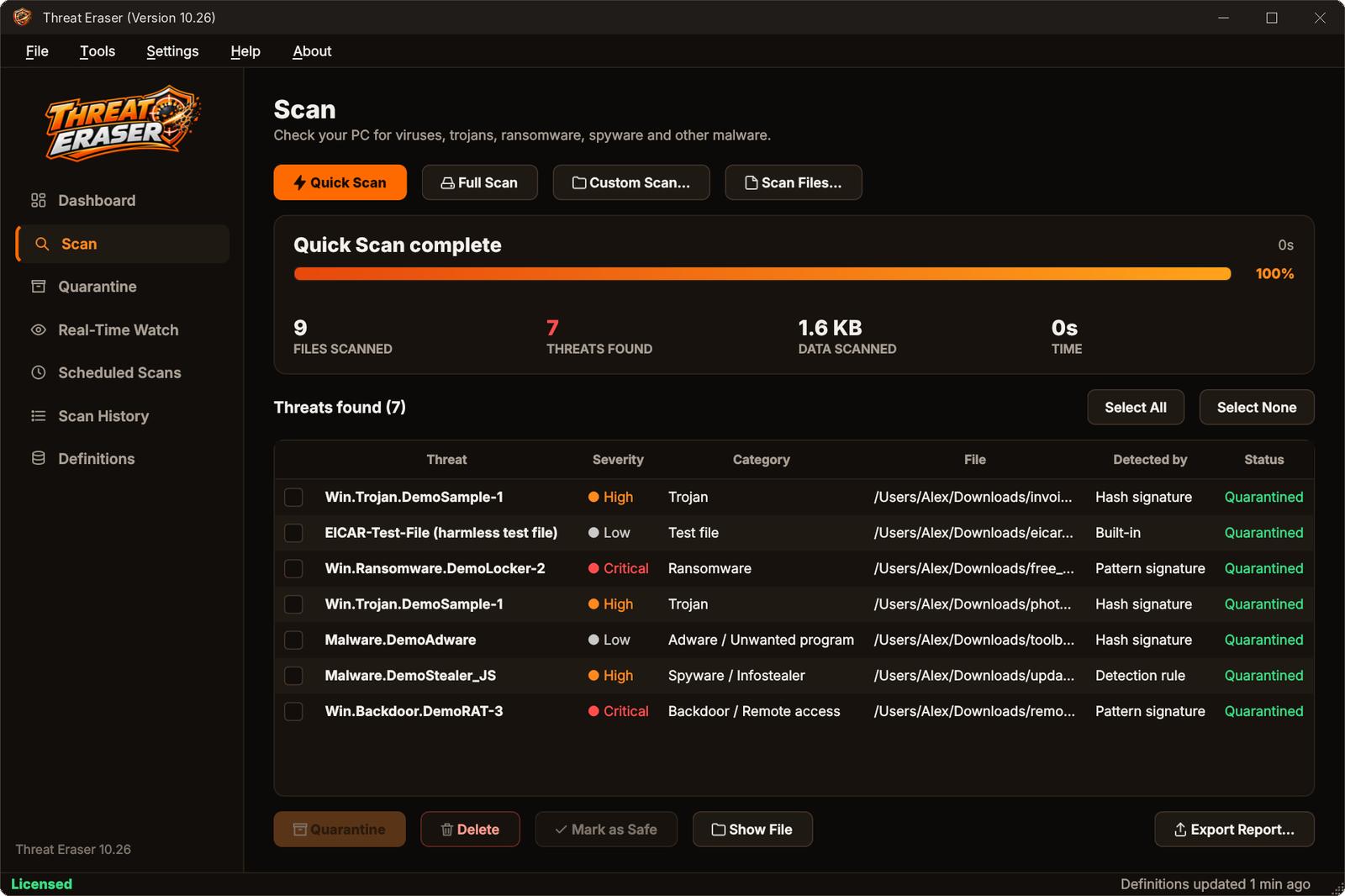
A threat inside a ZIP archive is removed by quarantining or deleting the whole archive – Threat Eraser asks first.
Quarantine, Delete and Export need an activated Installation Key. Without one, Threat Eraser shows you exactly what it found and offers to activate. See Installation Key & activation.
Quarantine
Quarantined files are encoded and kept in Threat Eraser's own folder, so they cannot run. The original is removed only after the quarantine copy has been checked.
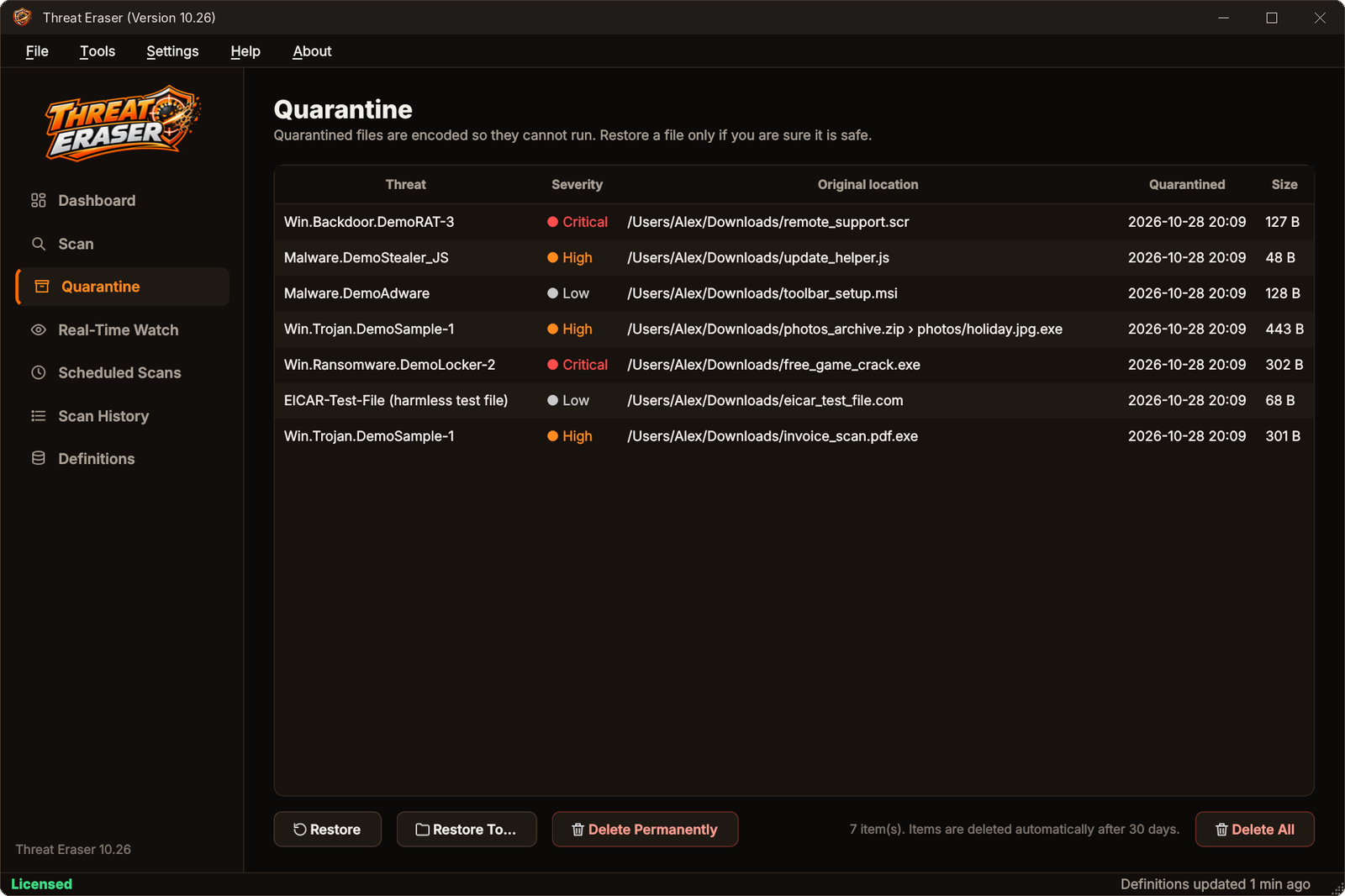
- Restore puts a file back where it was. If a file with the same name is there now, the restored file is called name (restored) – nothing is overwritten. Restored files are marked as safe.
- Restore To... restores to a folder you choose.
- Delete Permanently and Delete All remove quarantined files for good.
By default quarantined files are deleted automatically after 30 days. Change this in Default Settings › Protection.
Real-Time Watch
Real-Time Watch checks new and changed files in your Downloads, Desktop and Documents folders – and any folders you add – a moment after they appear. Downloads that are still in progress are checked once they finish.
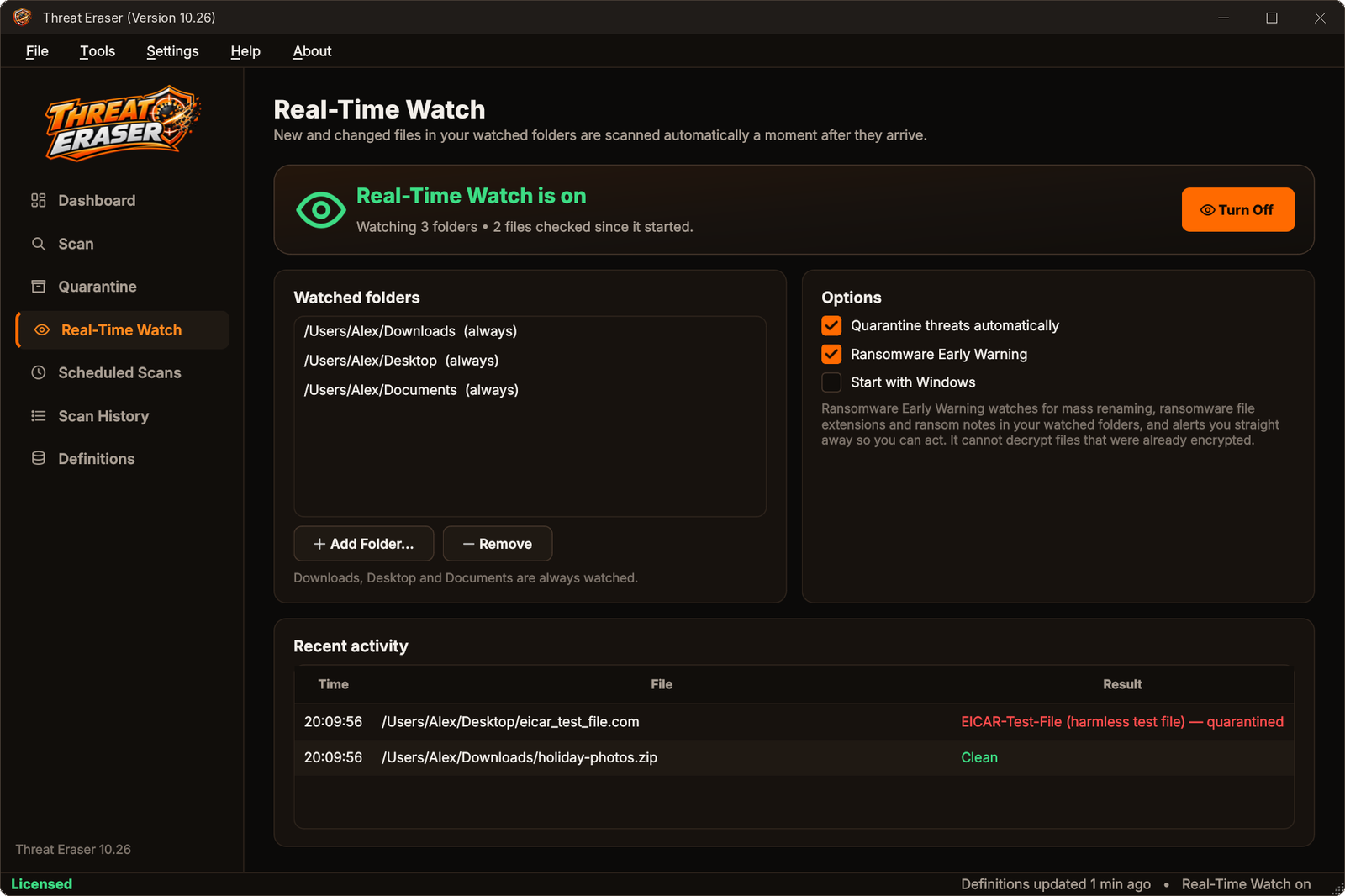
- Open Real-Time Watch in the side bar.
- Click Turn On.
- Optional: Add Folder... to watch more folders, tick Quarantine threats automatically and Start with Windows.
When a threat appears you get a notification. Recent activity lists every file checked and the result.
If Keep running in the notification area is on (Default Settings › Protection), closing the window keeps Real-Time Watch running. Right-click the tray icon and choose Exit to close Threat Eraser completely.
Ransomware Early Warning
Ransomware encrypts your files and demands payment. Ransomware Early Warning watches your watched folders while Real-Time Watch is on, and warns you straight away when it sees:
- several files suddenly given extensions used by ransomware (for example
.lockedor.lockbit); - a file that looks like a ransom note (for example HOW_TO_DECRYPT_FILES.txt);
- a very large number of files changed or renamed in a few seconds.
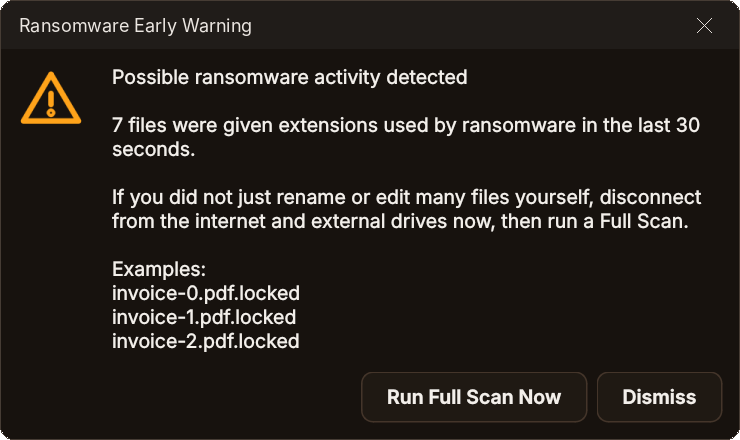
If you see this warning and you did not just rename or edit many files yourself: disconnect from the internet and unplug external drives, then click Run Full Scan Now. Ransomware Early Warning alerts you so you can act quickly; it cannot decrypt files that were already encrypted – keep backups of important files.
Scheduled scans
Threat Eraser can scan your PC automatically using Windows Task Scheduler, so scheduled scans run even when Threat Eraser is closed.
- Open Scheduled Scans in the side bar.
- Tick Run a scheduled scan, then choose Quick or Full Scan, every day or every week, the day and the time.
- Click Save Schedule.
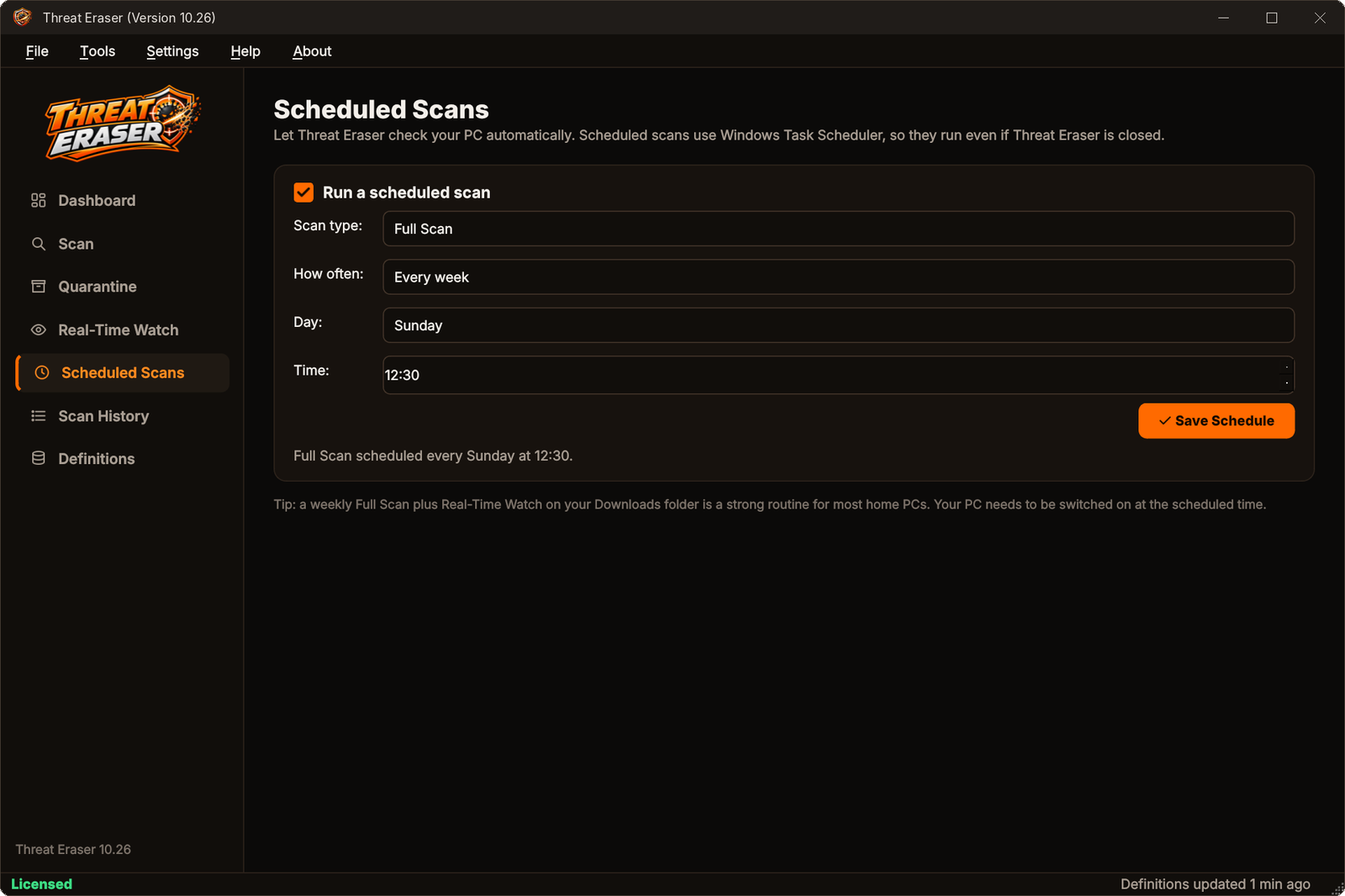
Your PC must be switched on at the scheduled time. You get a notification when the scan finishes.
Scan history & reports
Every scan is saved. Select a scan to see what it found.
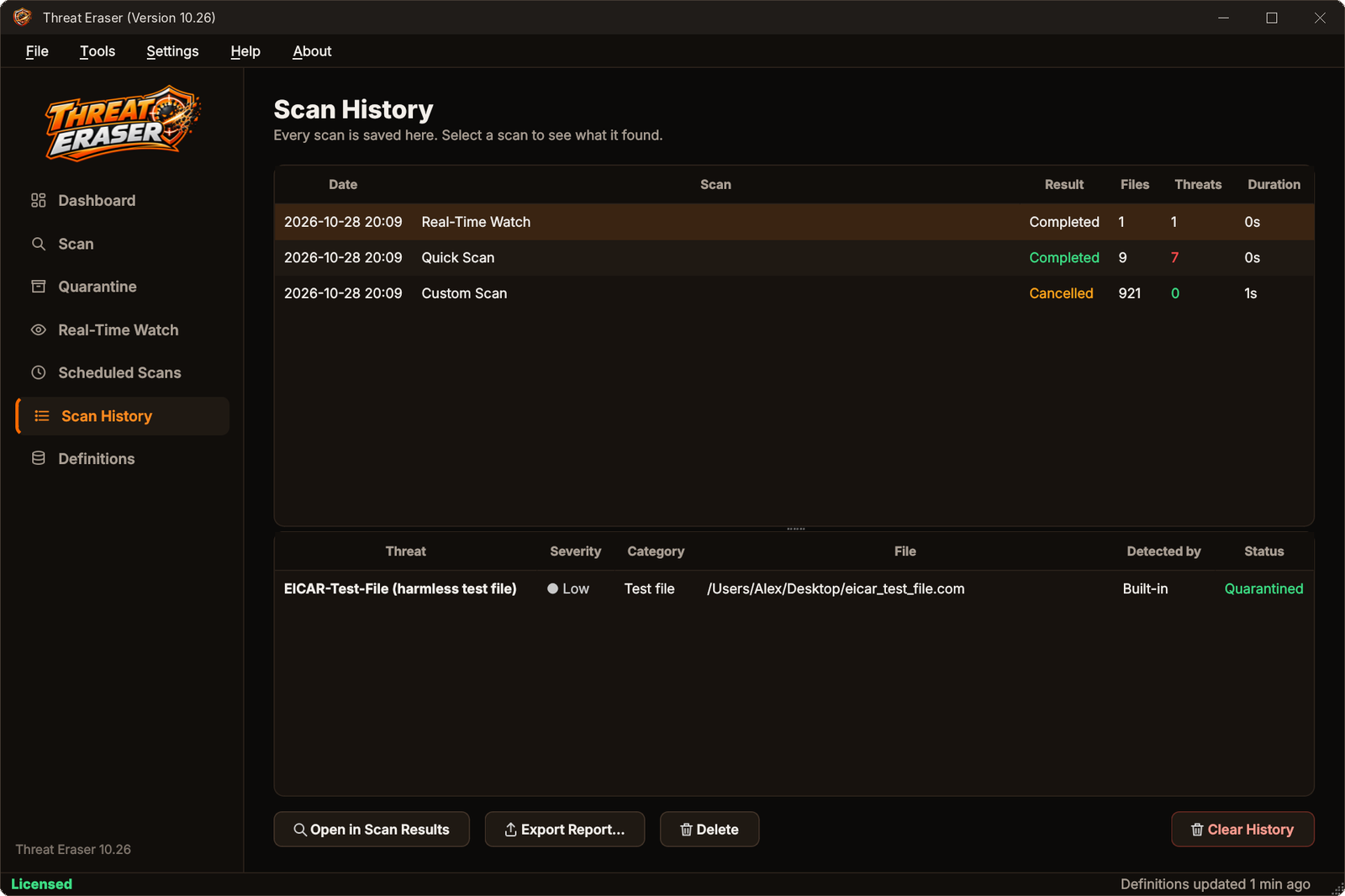
- Open in Scan Results – review the scan again and remove anything still there.
- Export Report... – save it as a web page (HTML), spreadsheet (CSV) or text file. Handy if support asks for it.
- Delete and Clear History – remove old entries. Quarantined files are not affected.
Virus definitions
Definitions are what Threat Eraser uses to recognise threats. They are updated every time Threat Eraser starts and every few hours while it runs (every 4 hours by default). You never need to do anything – but you can click Update Now on the Dashboard or Definitions page, or press F5.
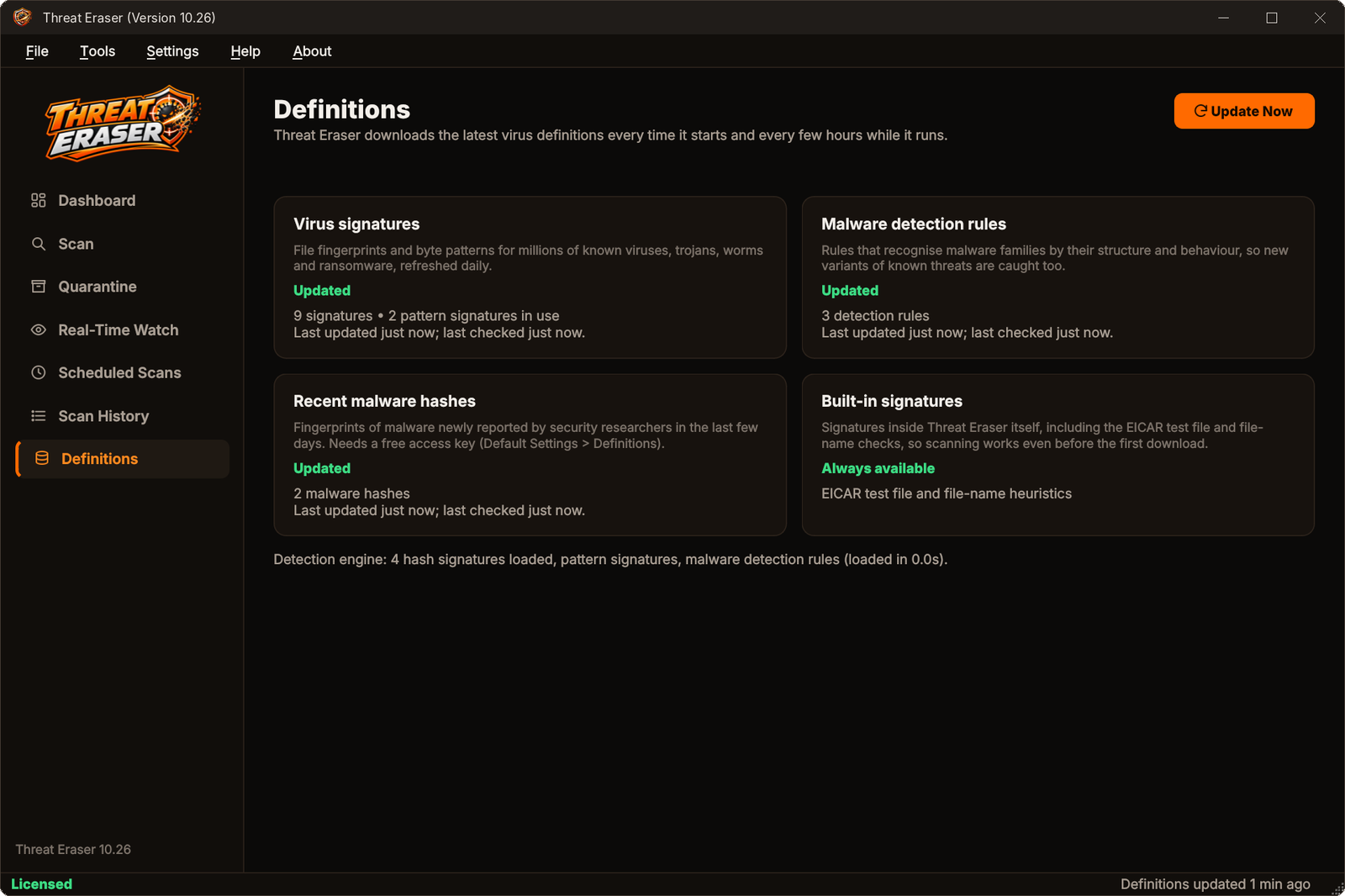
| Type | What it does |
|---|---|
| Virus signatures | File fingerprints and byte patterns for millions of known viruses, trojans, worms and ransomware, refreshed daily. |
| Malware detection rules | Recognise malware families by their structure and behaviour, so new variants of known threats are caught too. |
| Recent malware hashes | Fingerprints of malware newly reported by security researchers. Needs a free access key – see below. |
| Built-in signatures | Part of Threat Eraser itself, so it can scan even before the first download. |
Adding an access key for recent malware hashes
- Open Settings › Default Settings... › Definitions.
- Click Get a free key, sign up and copy your key.
- Paste it into Access key for recent malware hashes and click Save. Threat Eraser downloads the list straight away.
If an update cannot be completed – for example you are offline – Threat Eraser keeps using the definitions it already has and tries again later. The update server may ask Threat Eraser to wait before downloading again; the Definitions page shows when that happens.
Default Settings
Open Settings › Default Settings... (Ctrl+,). Click Save to keep changes.
Scanning
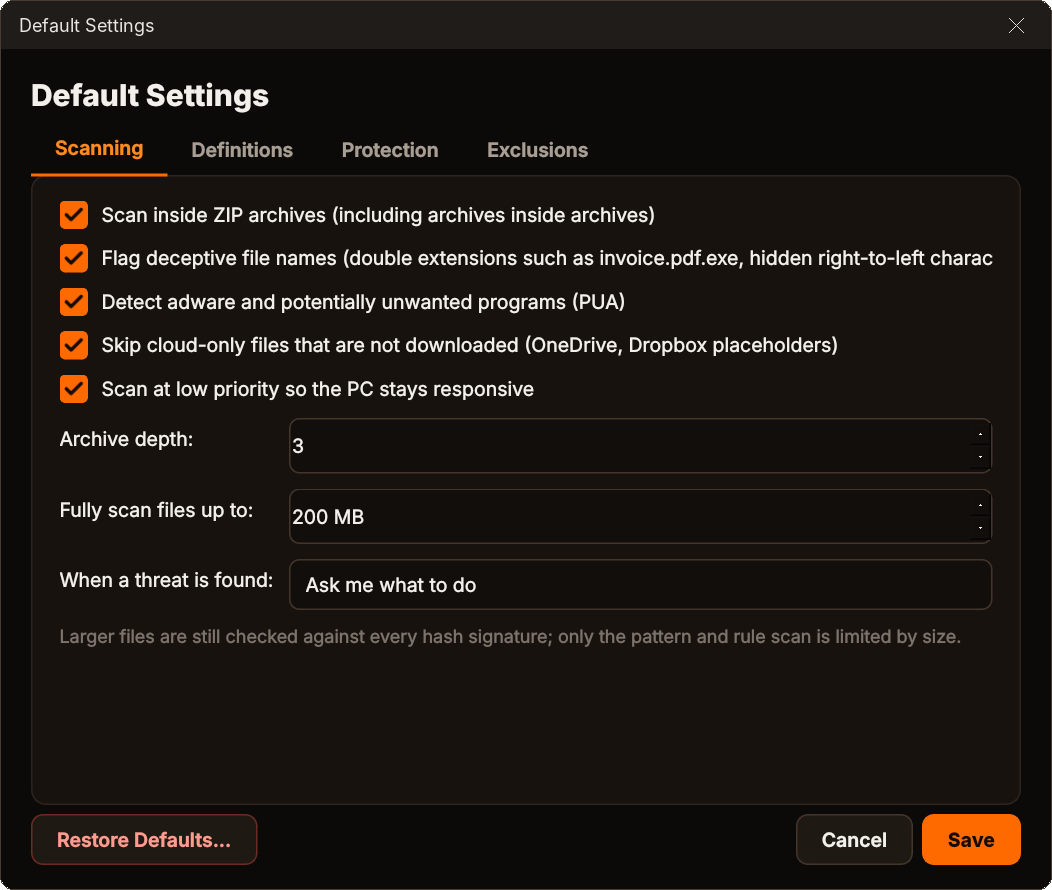
| Setting | What it does |
|---|---|
| Scan inside ZIP archives | Checks files inside ZIP files, and ZIP files inside those (up to the Archive depth). |
| Flag deceptive file names | Reports disguised programs such as photo.jpg.exe. |
| Detect adware and potentially unwanted programs | Includes adware, toolbars and bundled junk. |
| Skip cloud-only files | Avoids downloading OneDrive or Dropbox files that are only in the cloud. |
| Scan at low priority | Keeps your PC responsive during scans. |
| Fully scan files up to | Bigger files are still checked against every fingerprint; only the deeper pattern check is limited by size. |
| When a threat is found | Ask me what to do, or Quarantine automatically (licensed). |
Definitions
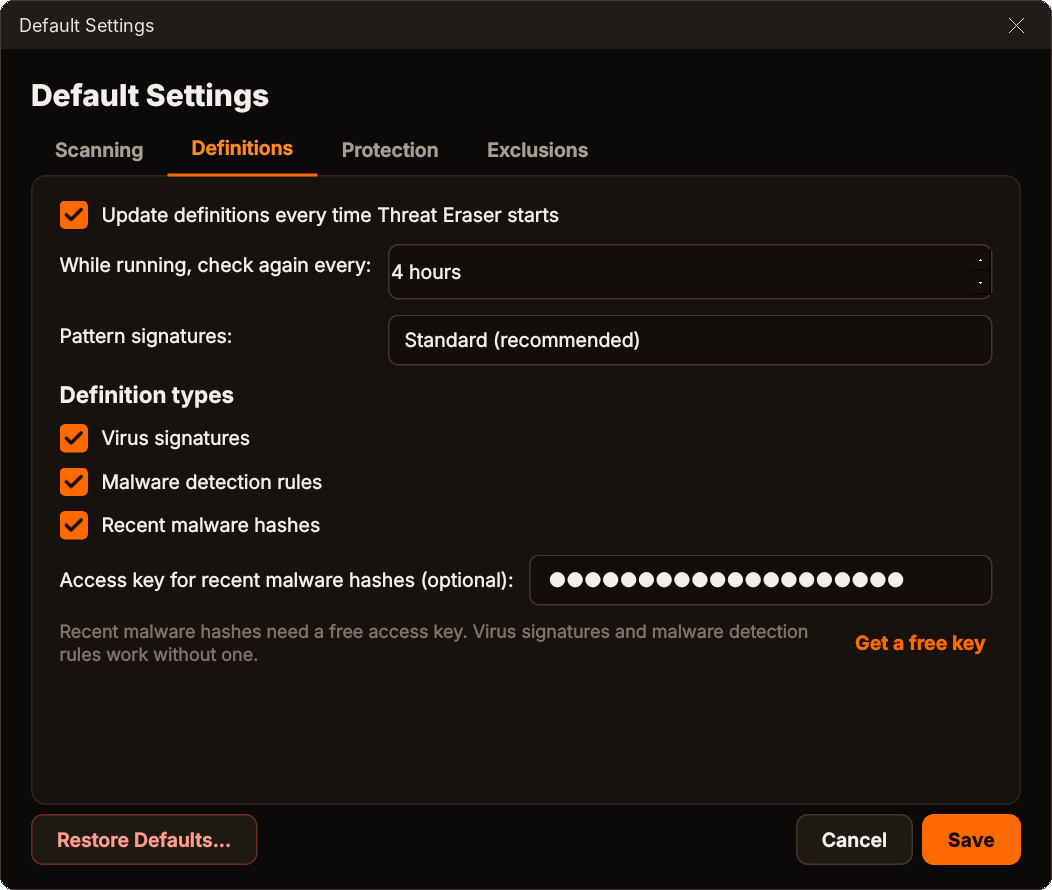
| Setting | What it does |
|---|---|
| Update definitions every time Threat Eraser starts | On by default. We recommend leaving it on. |
| While running, check again every | How often to look for new definitions while Threat Eraser is open. |
| Pattern signatures | Standard uses the newest pattern signatures and keeps memory use moderate. Maximum uses all of them and needs more memory. |
| Definition types | Turn each type of definition on or off. |
| Access key for recent malware hashes | See Virus definitions. |
Protection
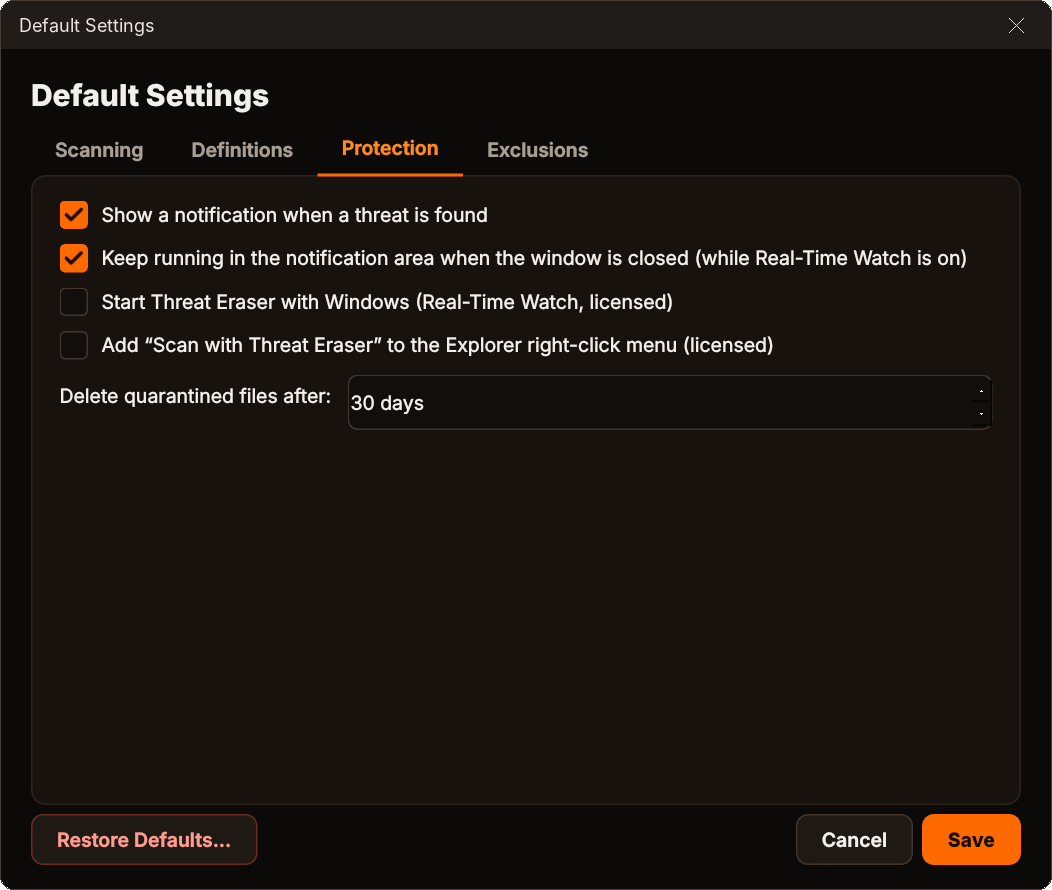
| Setting | What it does |
|---|---|
| Show a notification when a threat is found | Alerts from the notification area. |
| Keep running in the notification area | Closing the window keeps Real-Time Watch running. |
| Start Threat Eraser with Windows | Starts in the notification area with Real-Time Watch (licensed). |
| Add “Scan with Threat Eraser” to the Explorer right-click menu | Scan any file, folder or drive from Explorer (licensed). |
| Delete quarantined files after | Automatic clean-up of old quarantine items, or Keep forever. |
Exclusions
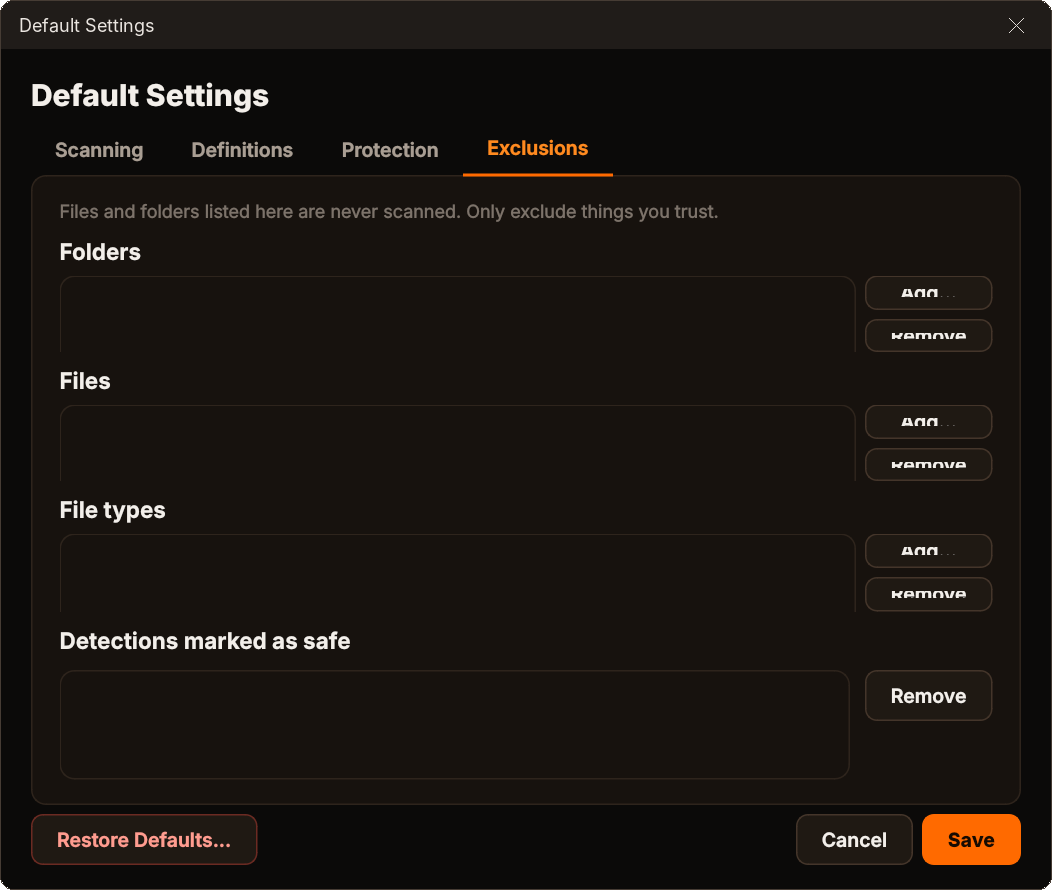
Folders, files and file types listed here are never scanned. Detections marked as safe lists files you chose Mark as Safe for; select one and click Remove to have it checked again. Open this tab directly with Tools › Exclusions....
Restore Defaults
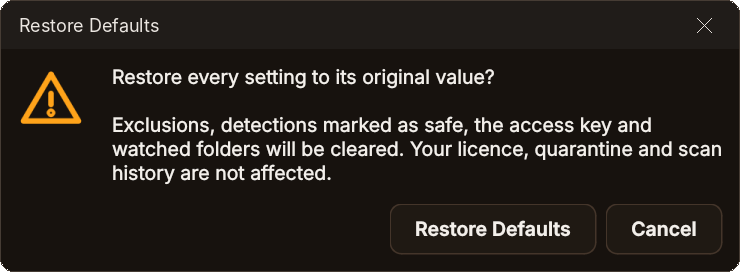
Restore Defaults... puts every setting back to its original value after you confirm. Your licence, quarantine and scan history are not affected.
Menus
File
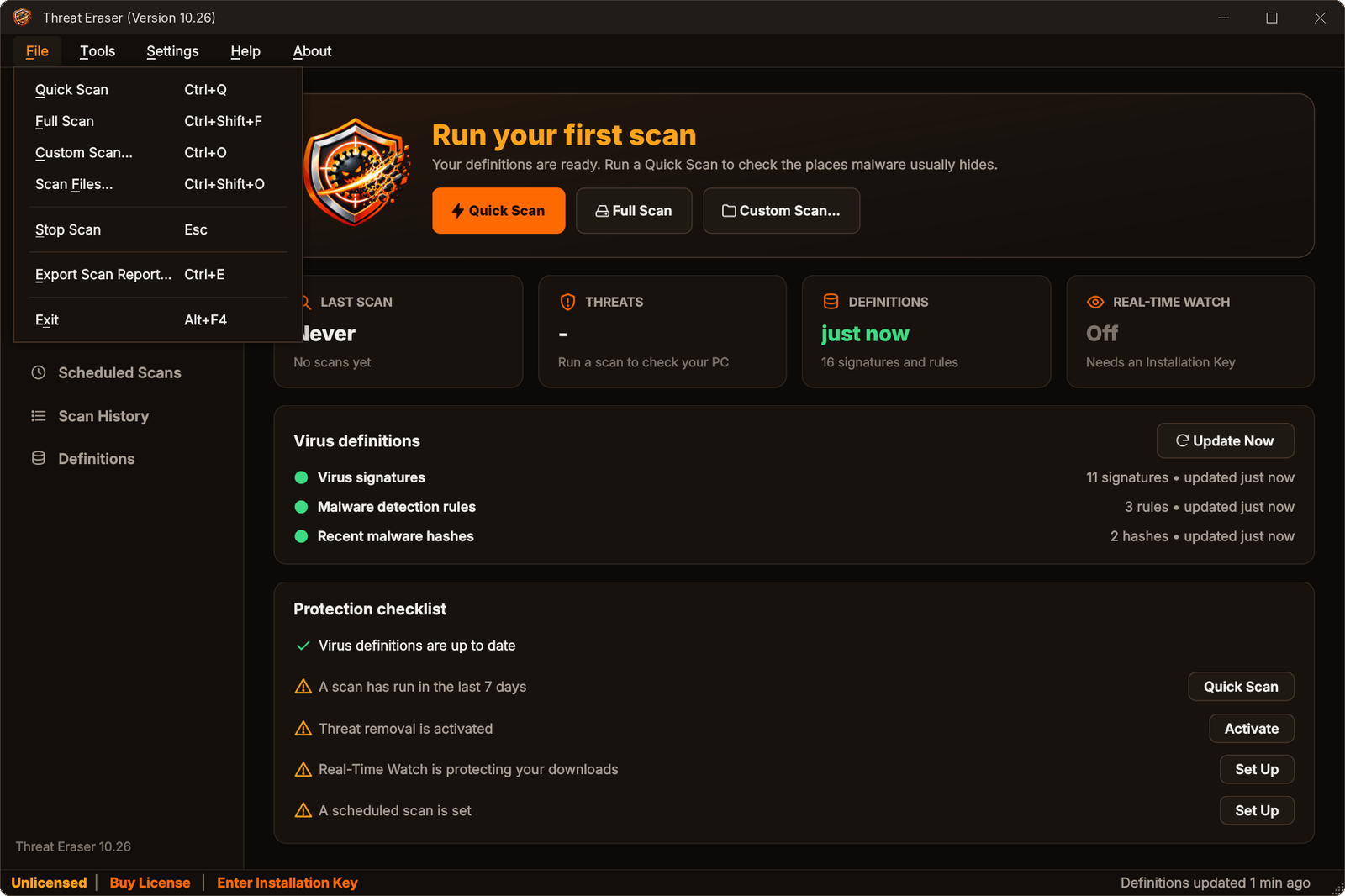
| Command | What it does |
|---|---|
| Quick Scan / Full Scan | Start that scan (Ctrl+Q / Ctrl+Shift+F). |
| Custom Scan... / Scan Files... | Choose a folder or files to scan. |
| Stop Scan | End the running scan (Esc). |
| Export Scan Report... | Save the latest results (Ctrl+E). |
| Exit | Close Threat Eraser. |
Tools
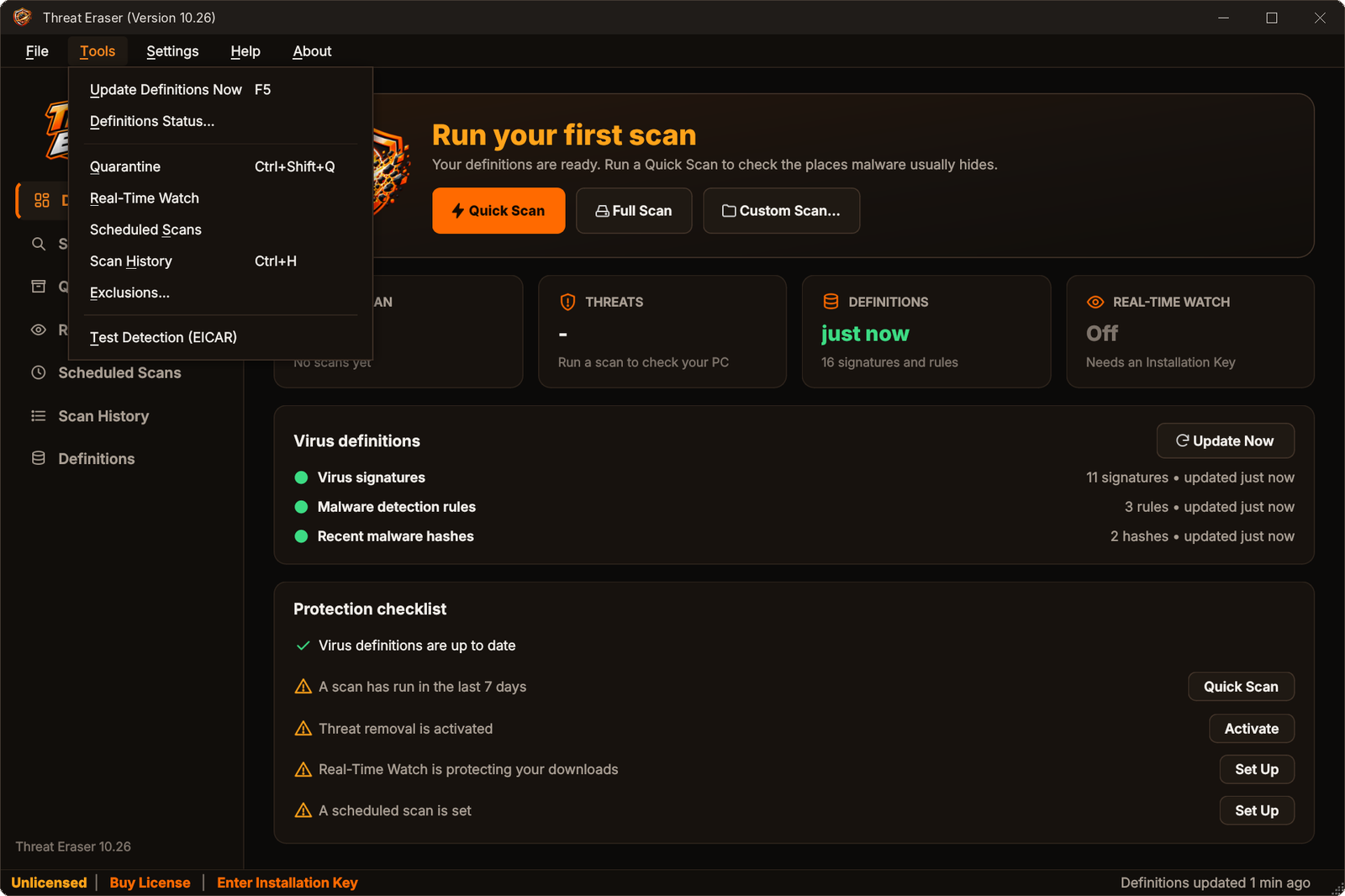
| Command | What it does |
|---|---|
| Update Definitions Now | Check for new definitions now (F5). |
| Definitions Status... | Open the Definitions page. |
| Quarantine, Real-Time Watch, Scheduled Scans, Scan History | Open that page. |
| Exclusions... | Open the Exclusions tab of Default Settings. |
| Test Detection (EICAR) | Creates the harmless, industry-standard EICAR test file in Documents\Threat Eraser Test and scans it, so you can see detection working. Other antivirus software may react to it too. |
Settings
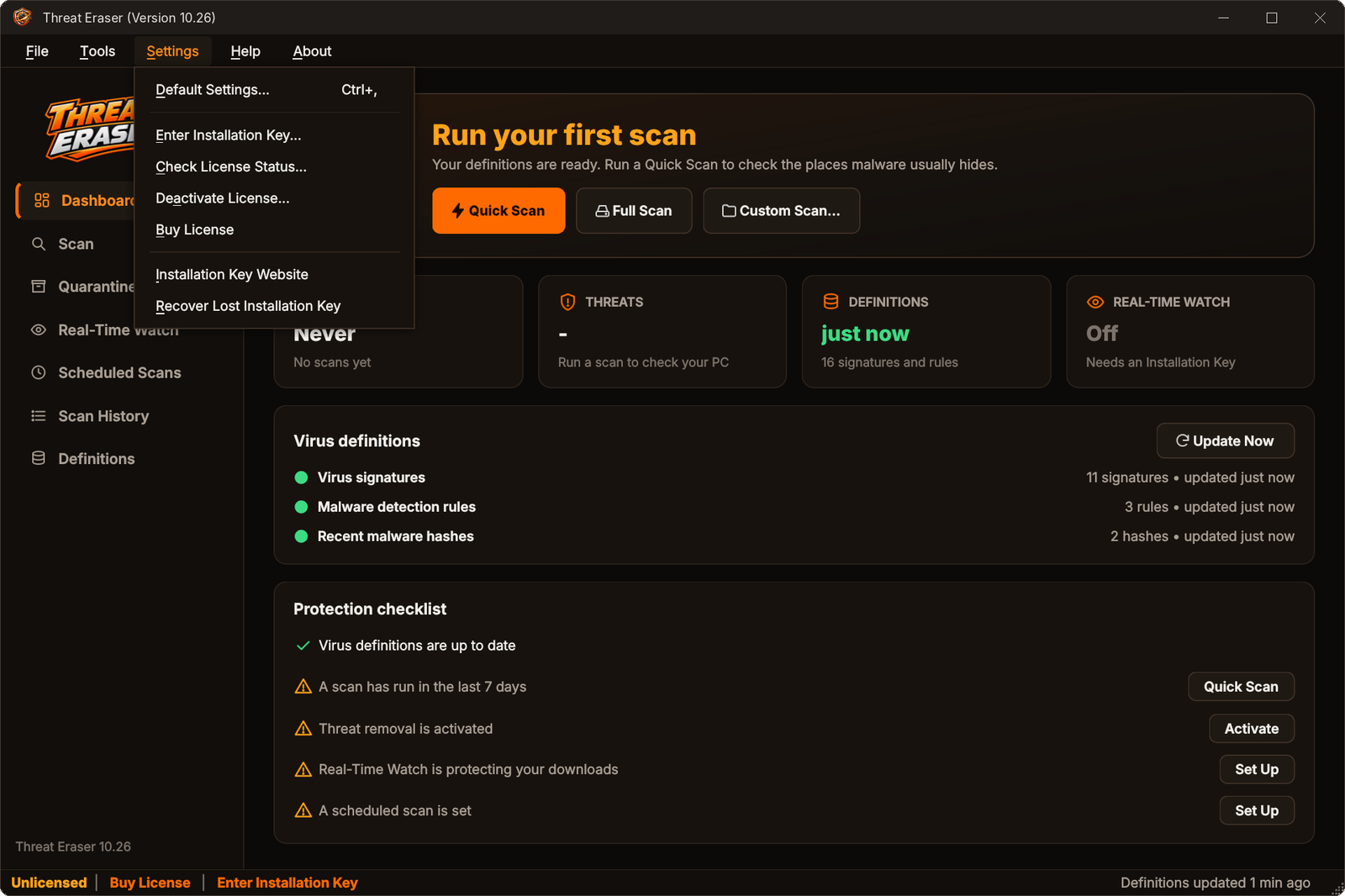
Default Settings, Enter Installation Key, Check License Status, Deactivate License, Buy License (shown until you activate – it opens the Threat Eraser website), Installation Key Website and Recover Lost Installation Key.
Help
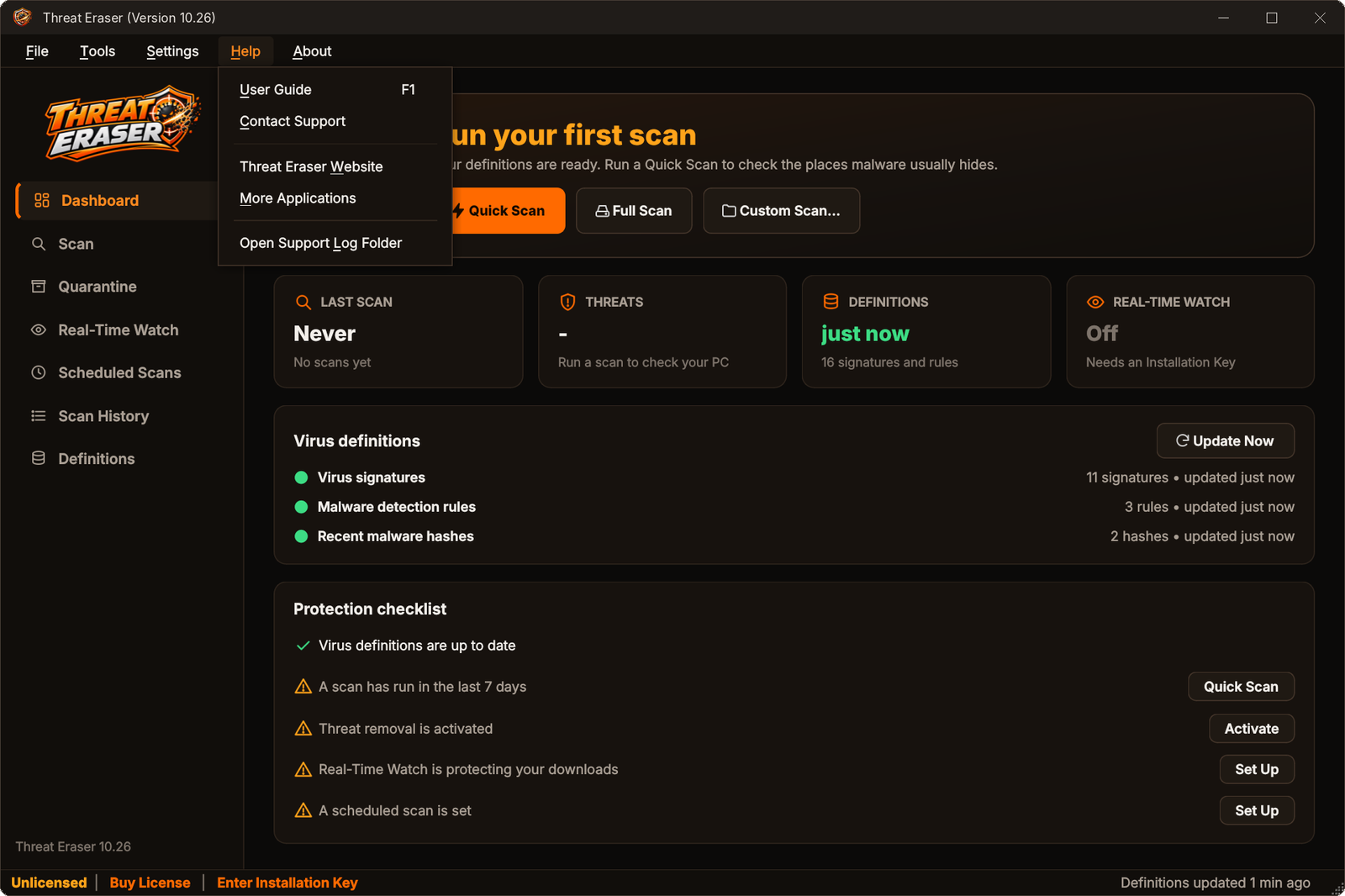
User Guide (F1), Contact Support, Threat Eraser Website, More Applications and Open Support Log Folder.
About
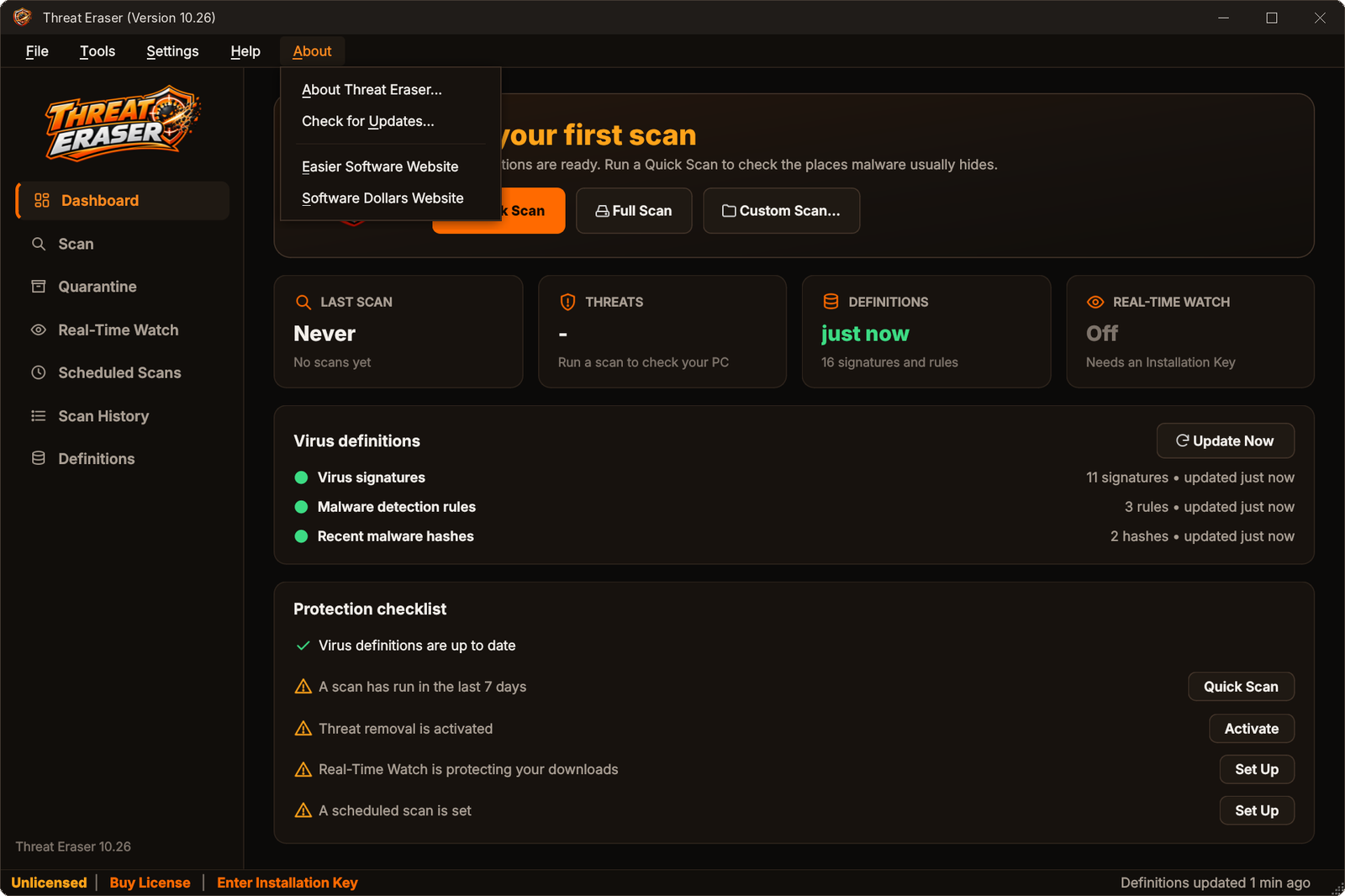
About Threat Eraser, Check for Updates, Easier Software Website and Software Dollars Website.
Installation Key & activation
Scanning is free. Your Installation Key unlocks threat removal and quarantine, Real-Time Watch, Ransomware Early Warning, scheduled scans, report export, the Explorer right-click scan and starting with Windows. One licence activates Threat Eraser on one PC.
Activate
- Choose Settings › Enter Installation Key..., or click Enter Installation Key in the status bar.
- Type or paste your key. It has the format
XXXX-XXXX-XXXX-XXXX– dashes are added for you. - Click Activate. You need to be online.
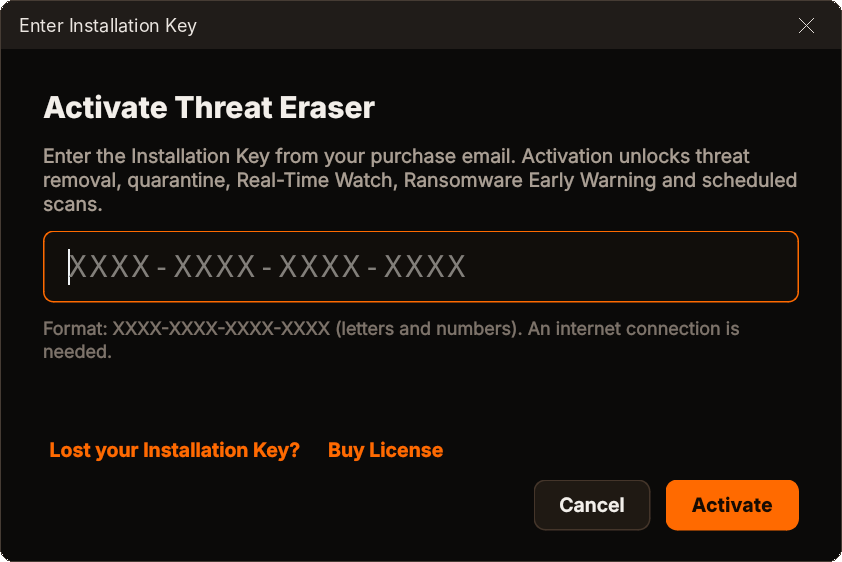
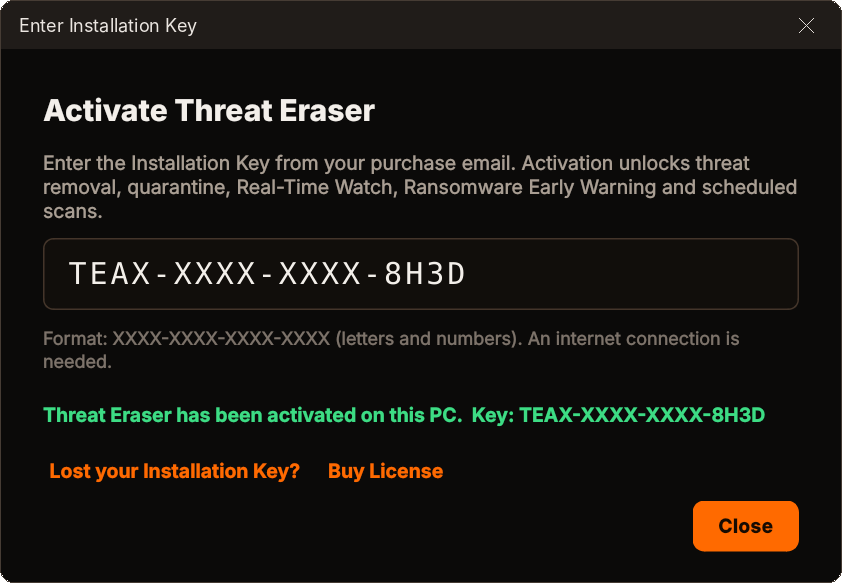
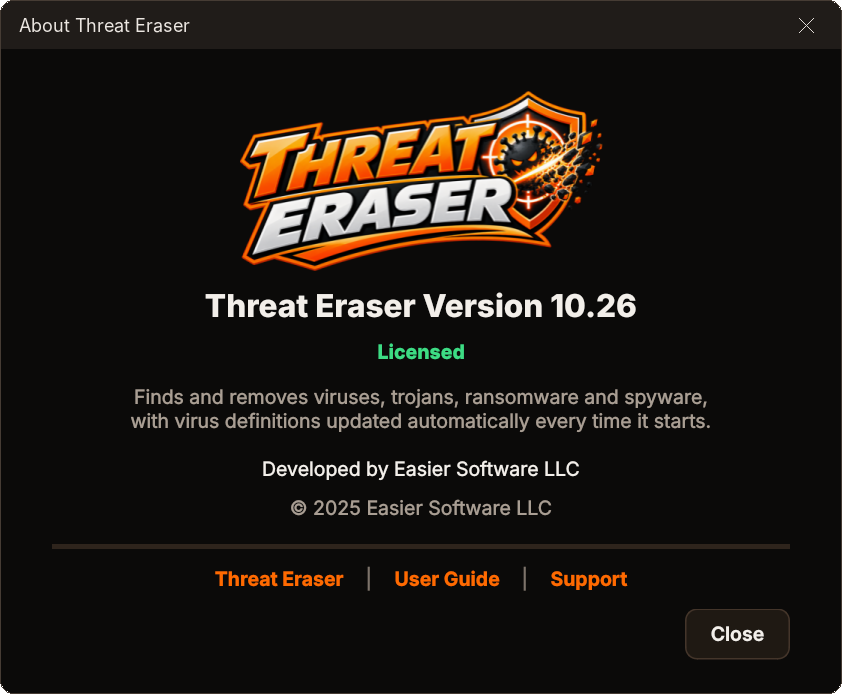
Your key is always masked. Once entered, Threat Eraser never shows the full key again – it appears as ABCD-XXXX-XXXX-WXYZ everywhere, including the About window and the support log. The full key is stored encrypted for your Windows account.
Licence states
| Shown as | Meaning |
|---|---|
| Licensed | Activated on this PC. Buy License is hidden. |
| Unlicensed | No key yet. Scanning works; removal and protection features need a key. The status bar shows Unlicensed | Buy License | Enter Installation Key. |
| License Invalid | The key was refused (for example not recognised, expired, or in use on another PC). Check License Status explains why. |
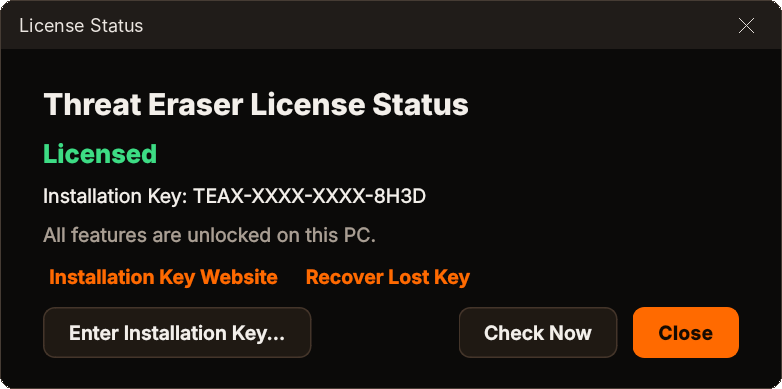
Check License Status
Settings › Check License Status... checks your key with the licence server and shows the result.
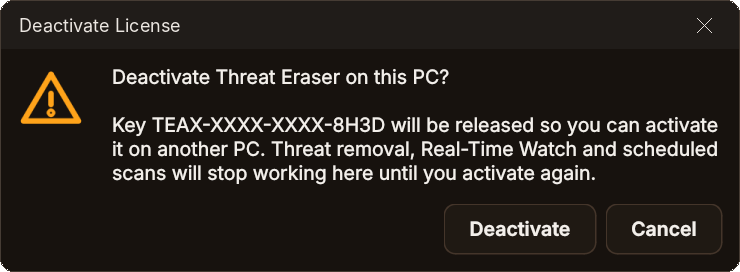
Moving to a new PC, reinstalling and hardware changes
- New PC: on the old PC choose Settings › Deactivate License..., then activate on the new PC.
- Reinstalling on the same PC: just enter your key again – the same PC is recognised.
- Old PC no longer available, or a major hardware change: contact support to release the activation.
- Offline: Threat Eraser re-checks your licence about once a day. If it cannot reach the licence server it keeps working for 7 days.
Lost your Installation Key? Look it up or have it reissued at installationkey.com/lookup – please try this before contacting support. It is also linked from Settings › Recover Lost Installation Key and from the Enter Installation Key window.
Buying a licence: Buy License anywhere in Threat Eraser opens www.threateraser.com, where you can buy. Your key arrives by email straight away.
"That Installation Key was not recognised"
"This Installation Key is already active on another PC"
"The licence server could not be reached"
Program updates
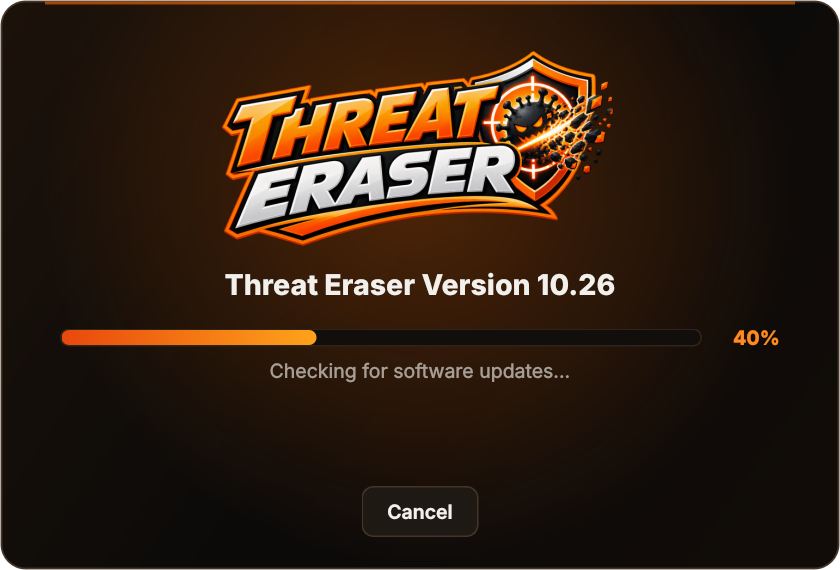
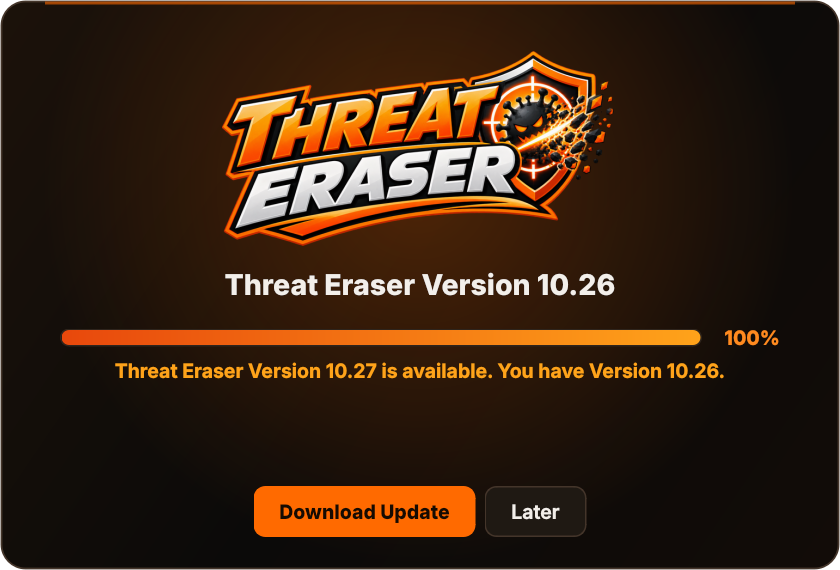
Virus definitions update by themselves. To check for a new version of Threat Eraser itself, choose About › Check for Updates....
| Result | What to do |
|---|---|
| A newer version is available | Click Download Update, then run the new installer over your current version. Your settings, quarantine, history and activation are kept. |
| You have the latest version | Nothing – you are up to date. |
| The update check could not be completed | Threat Eraser could not reach the update server. Check your internet connection and try again later. |
Keyboard shortcuts
| Keys | What it does |
|---|---|
| Ctrl+Q | Quick Scan |
| Ctrl+Shift+F | Full Scan |
| Ctrl+O / Ctrl+Shift+O | Custom Scan / Scan Files |
| Esc | Stop the scan |
| Ctrl+E | Export scan report |
| F5 | Update definitions now |
| Ctrl+Shift+Q | Quarantine |
| Ctrl+H | Scan history |
| Ctrl+, | Default Settings |
| F1 | This user guide |
Troubleshooting
Threat Eraser will not start
startup-error.txt and the Logs folder from %APPDATA%\Easier Software LTD\Threat Eraser (paste that into the Explorer address bar). Help › Open Support Log Folder opens the logs when the program runs.Definitions "Could not update"
Recent malware hashes say "Not in use" or "access key was not accepted"
"The file is locked by another program" when quarantining
Some files "could not be read"
I think a file was detected by mistake
A scan stopped unexpectedly
Real-Time Watch is off after restarting
Scheduled scan did not run
Windows reacted to the EICAR test file
Finding the installed version
Still stuck?
Tell us what you were doing and what the message said.
Frequently asked questions
Do I need any other security software?
Are my files uploaded anywhere?
Will it slow my PC down?
How often are definitions updated?
What can I do without a licence?
How many PCs can I use it on?
Is it a subscription?
Can Threat Eraser decrypt files encrypted by ransomware?
Where are quarantined files and settings kept?
%APPDATA%\Easier Software LTD\Threat Eraser. Uninstalling keeps them in case you reinstall; delete that folder to remove them.Help, support & policies
| Where | Link |
|---|---|
| User Guide (Help › User Guide, F1) | easiersoftware.com/support/threateraser |
| Contact Support | easiersoftware.com/support |
| Threat Eraser website & Buy License | www.threateraser.com |
| More Applications | easiersoftware.com/products |
| Installation Key website | installationkey.com |
| Lost Installation Key | installationkey.com/lookup |
| Policies | Refunds · EULA · Terms · Privacy · Cookies |
Uninstalling: Windows Settings › Apps, find Threat Eraser, click Uninstall. If you are moving to a new PC, deactivate your licence first. Scheduled scans, the Explorer menu entry and the start-up entry are removed with the program.
